Imago Printer Imago Printer

How to Fix Blurry Text on Digital Tag Printers in 2026?

Time:2026-05-09 Author:Amelia
0%

In the world of digital tag printing, clarity is paramount. Blurry text can severely impact the quality of your products. Understanding how to fix blurry text on digital tag printers is crucial for maintaining customer satisfaction. Many businesses struggle with this issue, often yielding poor results. The causes can range from printer settings to low-quality materials.

With advancements in technology, it's essential to stay updated on best practices for achieving sharp, clear images. Utilizing high-resolution files is a basic yet often overlooked step. Additionally, regularly calibrating your printer can help avoid blurriness. Users may find that experimenting with different heat settings affects print quality.

Addressing the challenge of unclear text may require patience and ongoing adjustments. Identifying the root cause can lead to improved outcomes. Relying solely on automatic settings may not suffice, as manual tweaks often yield better clarity. Ultimately, knowing how to fix blurry text on digital tag printers will enhance not only your products but also your reputation in the competitive market.
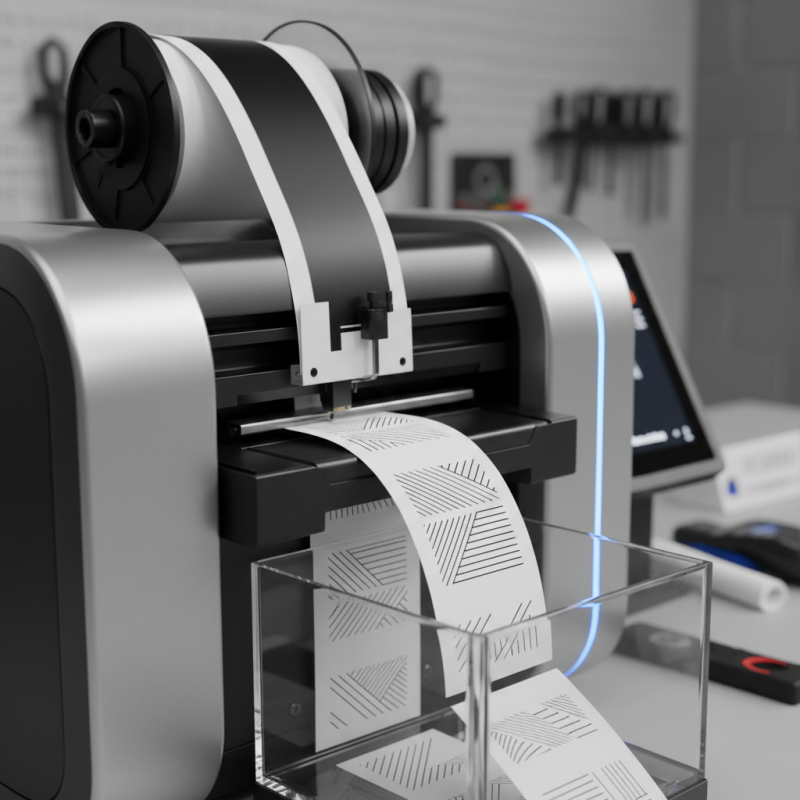
How to Fix Blurry Text on Digital Tag Printers in 2026?

Understanding the Causes of Blurry Text on Digital Tag Printers

Blurry text on digital tag printers can frustrate users. Understanding the causes is essential for effective solutions. Several factors contribute to blurry text. Common issues include improper printer settings, low-quality ink, and clogged nozzles. Each element can impact clarity.

Printer settings may be incorrect. Ensure that the resolution is set to the optimal level. Check for proper alignment and calibration, too. Cleaning the printhead frequently is critical. A clogged or dirty nozzle often results in text distortion. Regular maintenance can prevent future issues.

Tips for maintaining printer quality include using high-quality printing materials. Inks can differ significantly in performance. Regular cleaning schedules are vital. Test prints will help identify issues early. Don't ignore minor blurriness; it might indicate a more serious problem. Regular assessments can save time and resources in the long run.

Common Printer Settings that Affect Text Clarity

When dealing with blurry text on digital tag printers, printer settings play a vital role. The resolution setting is crucial. High resolution enhances clarity but may slow printing speed. Conversely, low resolutions can lead to unclear text. Experiment with different resolutions to find the optimal balance between speed and quality.

Another important setting is the print density. Adjusting this can significantly impact text sharpness. Too high a density may cause ink overflow, resulting in smudged letters. Too low will yield faded prints. It’s important to find a middle ground for optimal output.

**Tips:** Always run a test print to gauge adjustments. Keep your printer's firmware updated to ensure compatibility with new features. Regularly check your ink levels, as low ink can also contribute to poor print quality. Small adjustments in settings can lead to noticeable improvements, so take the time to fine-tune them carefully.

How to Fix Blurry Text on Digital Tag Printers in 2026

This chart illustrates the common printer settings that affect text clarity for digital tag printers. The data represents the impact of resolution, print speed, and ink density on text clarity.

Tips for Properly Calibrating Your Digital Tag Printer

Calibrating your digital tag printer is essential for producing sharp, clear text. Many users face issues with blurry prints, often due to improper calibration. Start by checking the printhead alignment. A misaligned printhead can easily cause text to appear muddled. Adjust the printhead according to the manufacturer's guidelines. Make sure to use the right tools for measurement.

Another crucial aspect is the ink and print settings. Using the correct ink type for your printer can greatly enhance clarity. Ensure your printer settings match the specifications of the media being used. Experimenting with resolution settings may also help. Higher DPI (dots per inch) often yields better clarity, but it may slow down printing speed.

Lastly, consider the maintenance of your printer. Dust and debris can affect print quality. Regular cleaning can prevent blurry text. Don't overlook the importance of software updates, as these can contain critical fixes for print quality. Reflect on your routine and assess if your current processes support high-quality output. Adjust where necessary.

Best Practices for Choosing Paper and Ink for Clear Printing

Choosing the right paper and ink is crucial for achieving clear prints on digital tag printers. The quality of paper directly impacts text sharpness. A study by the Printing Industries of America found that using high-quality paper can improve print clarity by over 30%. Brands that focus on ink saturation and absorbency see significant differences in print outcomes. The right combination ensures the ink does not bleed, resulting in sharper text.

Ink selection also plays a pivotal role. According to industry data, specialty inks designed for specific papers can enhance legibility. For instance, pigment-based inks are known for their water resistance and longevity. In contrast, dye-based inks may offer vibrant colors but can struggle with outdoor durability. It’s essential to understand the balance between color vibrancy and text clarity, especially for labels exposed to varying environmental conditions.

Consider experimenting with different paper types and ink combinations. Not every combination will yield perfect results. You may need to adjust settings on the printer to achieve desired outcomes. Regular testing helps fine-tune these elements for optimal clarity. Mistakes can lead to wasted materials and time, but each failure provides insights for better decisions in the future.

Troubleshooting Hardware Issues Impacting Print Quality

Blurry text on digital tag printers can be frustrating. It often stems from hardware issues that affect print quality. Regular maintenance is crucial for optimal performance. Ensure that print heads are clean and free from debris. Over time, dust and ink buildup can hinder print clarity.

Adjusting print settings can improve sharpness. Lowering the speed of the printer may help. However, this can lead to longer print jobs. Experimenting with various resolutions can lead to better outcomes. Sometimes, high-quality settings may cause the printer to struggle, resulting in poor text definition.

On occasion, printer alignment issues can cause blur. A simple calibration can make a noticeable difference. Ensure the labels are loaded correctly and that the printer’s rollers are not worn out. Each small detail counts. Regular checks can prevent larger problems down the line. Sometimes, we overlook these minor fixes, leading to persistent issues. Always reflect on the setup environment too. Humidity and temperature can also impact print quality.

How to Fix Blurry Text on Digital Tag Printers in 2026? - Troubleshooting Hardware Issues Impacting Print Quality

Issue Possible Causes Recommended Solutions Prevention Tips
Blurry Text Improper alignment of print head Re-align the print head using manufacturer instructions Regularly check alignment settings
Faded Print Low ink or toner levels Replace ink or toner cartridges Monitor ink levels frequently
Inconsistent Quality Dirty print head nozzles Run the printer's cleaning cycle Perform routine maintenance
Streaks in Print Damaged print heads Replace damaged print heads Handle print heads with care during maintenance
Color Misalignment Incorrect color setting or calibration Re-calibrate the printer's color settings Regularly re-check and adjust color calibration

FAQS

: How does resolution affect print clarity?

: High resolution improves clarity but may reduce speed. Low resolution causes unclear text. Experiment to find balance.

What is print density?

Print density adjusts ink application. Too high leads to smudges, while too low results in faded prints. Aim for a middle ground.

Why should I test print before finalizing?

Test prints help gauge adjustments. They show the impact of changes and identify necessary tweaks for better quality.

How does paper quality influence printing?

High-quality paper can enhance clarity by over 30%. It prevents ink bleeding and sharpens the text.

What types of ink should I consider?

Specialty inks match specific papers. Pigment-based inks offer durability. Dye-based inks provide vibrancy but may fade outdoors.

How can regular maintenance improve print quality?

Updating firmware and checking ink levels are vital. Low ink leads to poor quality, so maintenance is necessary for clarity.

What is the importance of experimenting with settings?

Different settings yield various results. Not every change will be perfect. Learn from mistakes to improve future prints.

Can low ink impact clarity?

Yes, low ink levels contribute to poor print quality. Regularly check and replace ink to maintain clarity.

What should I do if prints are still unclear?

Adjust printer settings and try new paper or ink. Persistence is key to finding the right combination for clarity.

Conclusion

In the quest to learn how to fix blurry text on digital tag printers, it's essential to first understand the underlying causes of this issue. Common factors include incorrect printer settings, inadequate media quality, and hardware malfunctions, all of which can significantly impact text clarity. By familiarizing yourself with the settings that affect print quality, such as resolution and contrast, you can take proactive steps to enhance results.

Proper calibration of your digital tag printer is crucial, as is selecting the right paper and ink to ensure clear and crisp printing. Implementing best practices in these areas can help mitigate blurriness. Additionally, troubleshooting hardware issues, like clogged nozzles or misaligned print heads, is vital for maintaining optimal print performance. By following these guidelines, you can effectively resolve the challenges associated with blurry text on digital tag printers.

Amelia

Amelia

Amelia is a seasoned marketing professional with a wealth of expertise in our company’s core offerings. With an unwavering passion for driving growth and innovation, she plays a pivotal role in shaping our marketing strategies and enhancing brand visibility. A key aspect of her responsibilities......